Touchstone Service Operator Manual
Source: Notion | Last edited: 2025-10-16 | ID: 1832d2dc-3ef...
Introduction
Section titled “Introduction”Touchstone Service (”touchstone” for short) is a system that automates the training of prediction models using the el-nigma library. Touchstone helps our engineers by:
- Provisioning compute resources for training
- Automatically installing and configuring el-nigma and other requirements
- Providing a friendly UI for specifying and tracking training jobs
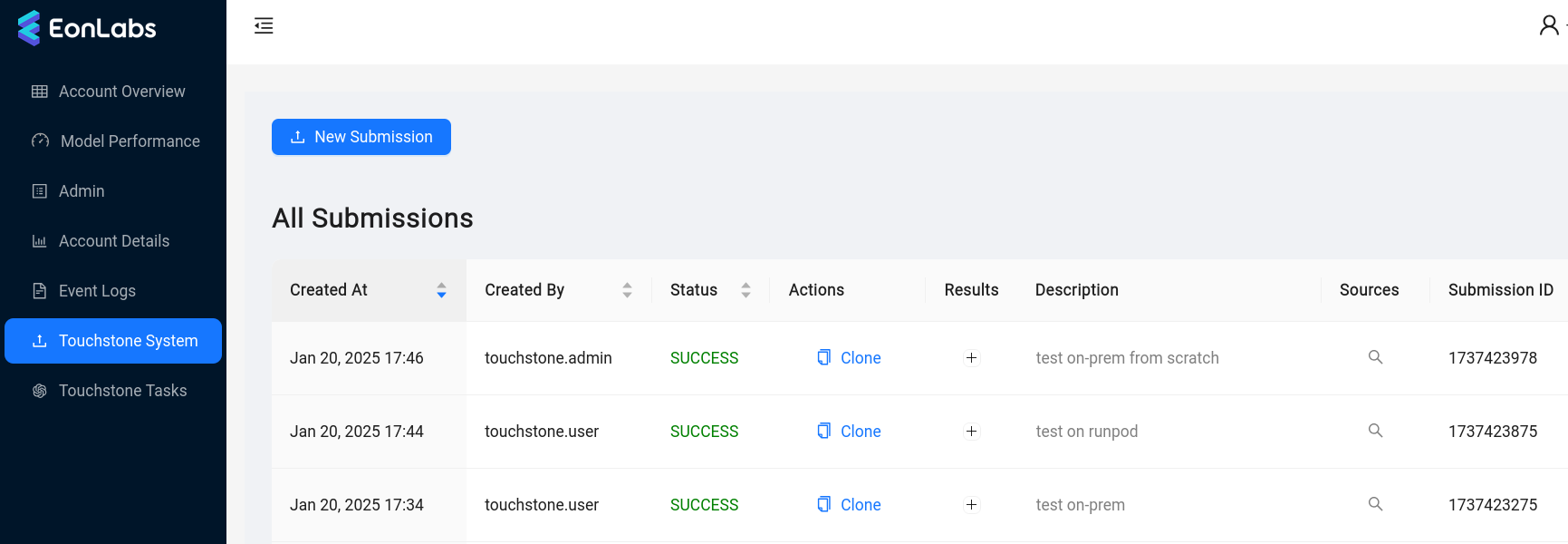
To get started with touchstone, open the EonLabs admin UI and look for the Touchstone System page in the menu. (If you cannot find this option, your user needs to first be added to the
touchstone_usergroup in AWS Cognito).
Workflow
Section titled “Workflow”A user begins interacting with touchstone by creating a submission.
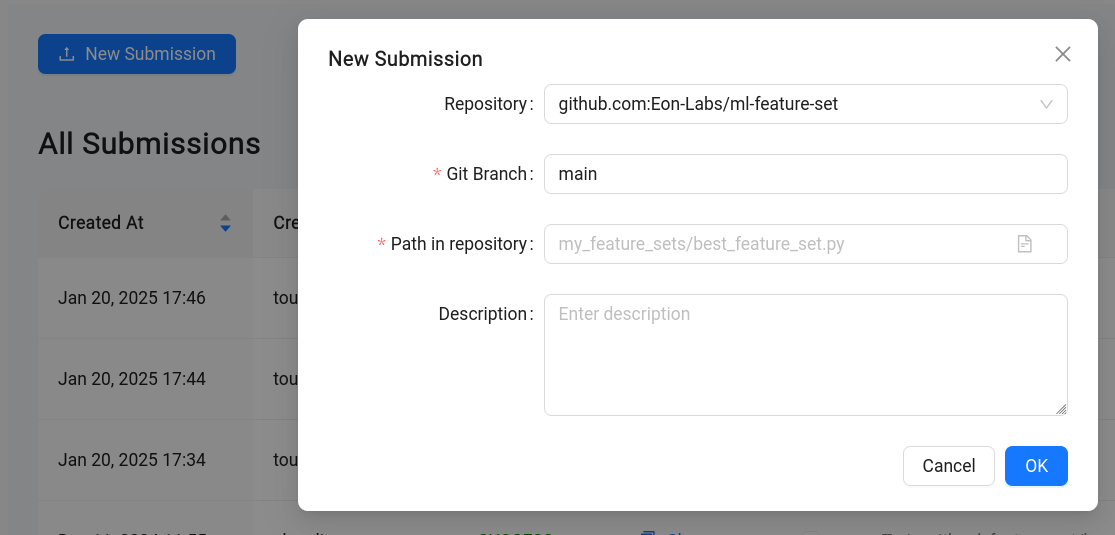
Currently, a submission must specify a git source of a feature set implementation (example) to use when training. This may be extended in the future to accept other components, such as a model structure implementation.
The submission is then checked for errors, and if none are found, it is considered *accepted. *An EonLabs engineer can then schedule that submission for training, specifying additional parameters for the training job. Training proceeds much like it would if the engineer was running el-nigma directly. Finished models are published to AWS S3, and metrics are published to DynamoDB and MLflow. At the end of training, some basic performance metrics and logs are available in the admin UI. More detailed logging is available in a dedicated AWS S3 bucket.
Task Lifecycle
Section titled “Task Lifecycle”When a submission is scheduled, the system creates one or more training tasks. A task is a request to train one pair of models (long and short strategy). Each task is first queued until an appropriate compute resource is available for it, then starts training. When *finished, *it will have produced either a pair of models, or an error report. Engineers may also decide to cancel an unfinished submission, in which case its tasks are terminated.
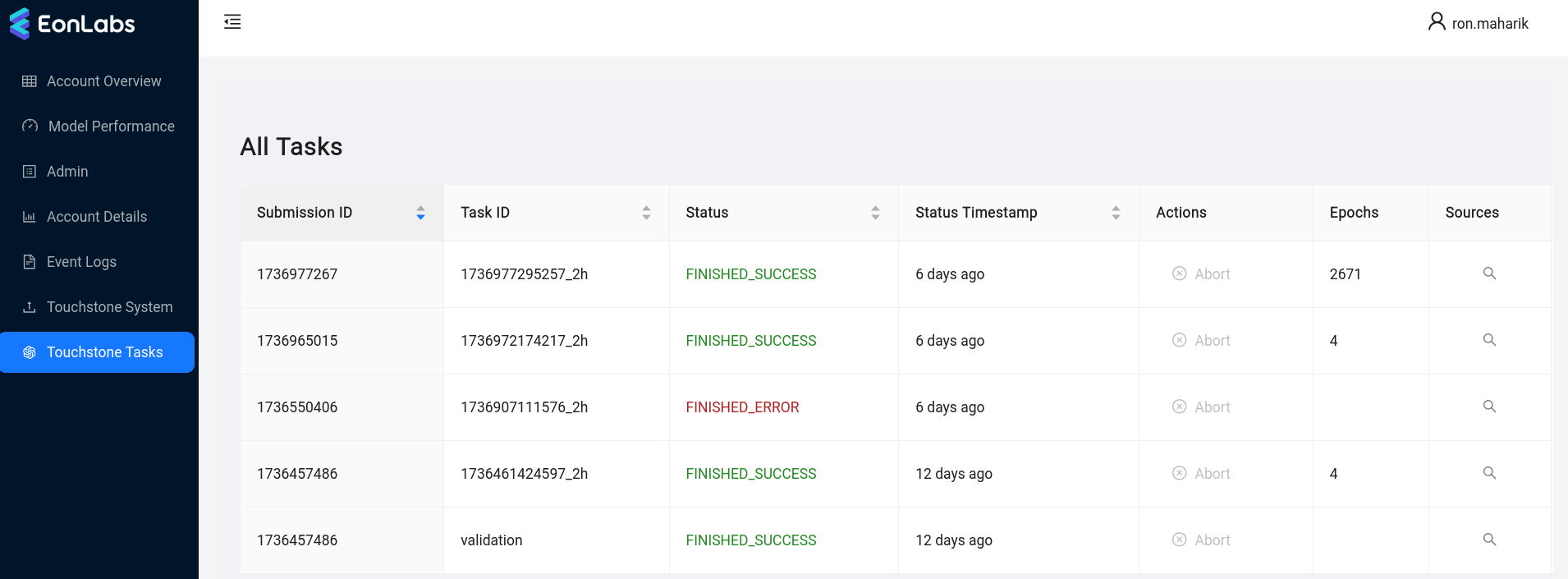
The Touchstone Tasks page in the UI allows engineers to inspect current and historical tasks. (To see this page, your user must first be added to the touchstone_admin group in AWS Cognito).
Validation workflow
Section titled “Validation workflow”We mentioned earlier that that new submissions are checked for errors before they are accepted. The procedure that performs this check is very similar to the training of a model: the backend starts a task, installs el-nigma and dependencies, then runs a script that loads the given feature set implementation and exercises it against canned data. This happens automatically when a new submission is created, i.e. there is no need for an engineer to schedule these validation runs. Tasks launched for the purpose of validating a submission can be identified by their task ID, which is always validation (see screenshot above).
Compute Platforms
Section titled “Compute Platforms”Each touchstone task executes in a Docker container. These containers can be deployed to one of two compute platforms:
- EonLabs-owned GPU servers that have been integrated into the touchstone system, using a piece of software called touchstone-agent. We refer to such tasks as running on-prem.
- RunPod, a cloud service that provides affordable access to GPU compute. The on-prem GPU servers have the advantage that we already paid for the compute. In addition, deploying containers on them is much quicker, and they tend to have better performance and network bandwidth. RunPod, on the other hand, allows us to scale out training beyond our in-house resources, and also provides access to a large selection of GPU models to choose from.
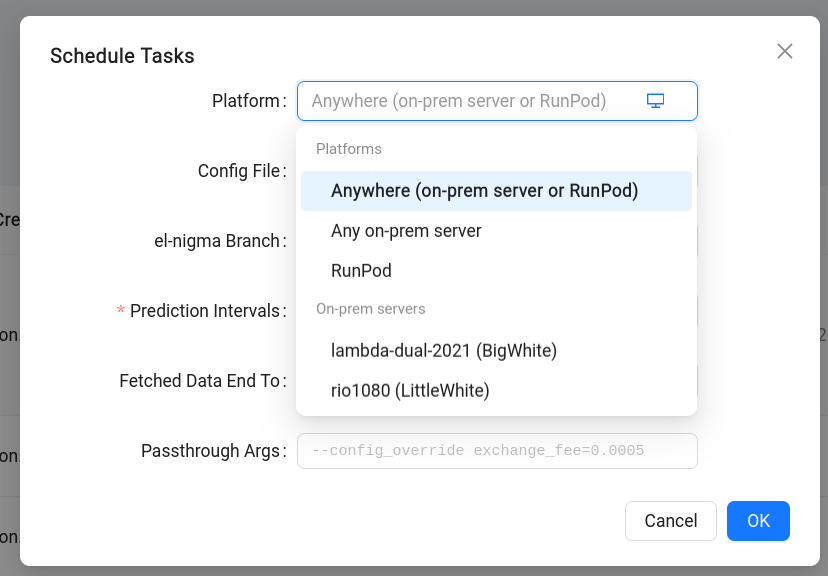
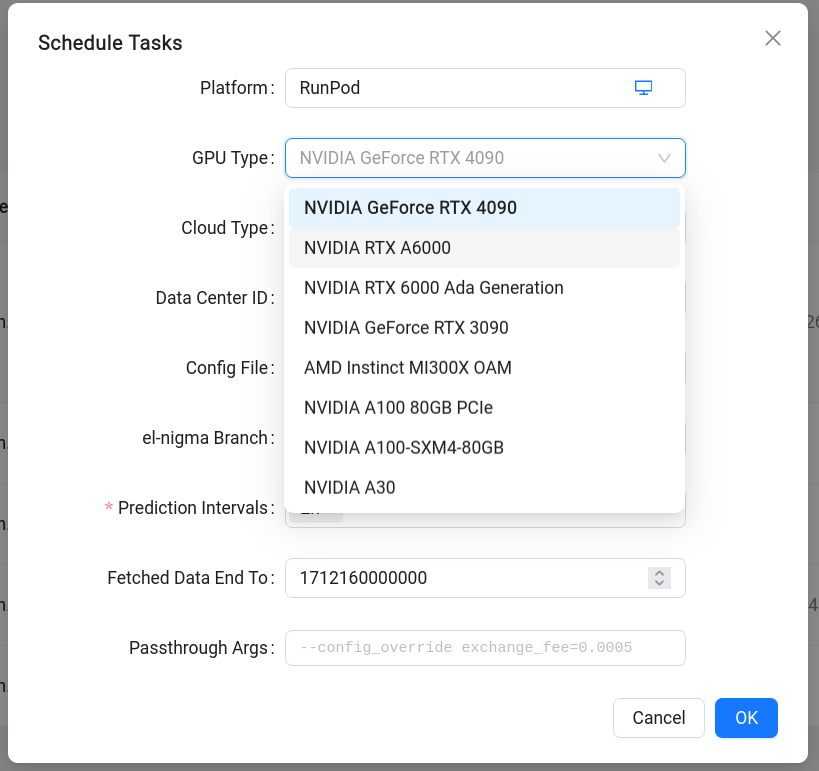
When scheduling a submission, engineers can select whether to run the tasks on-prem, on RunPod, or anywhere available (in which case the system will prefer on-prem servers when possible). In the case of RunPod, engineers can select the GPU model to use, as long as RunPod has that model available at the time.
More Configuration Options
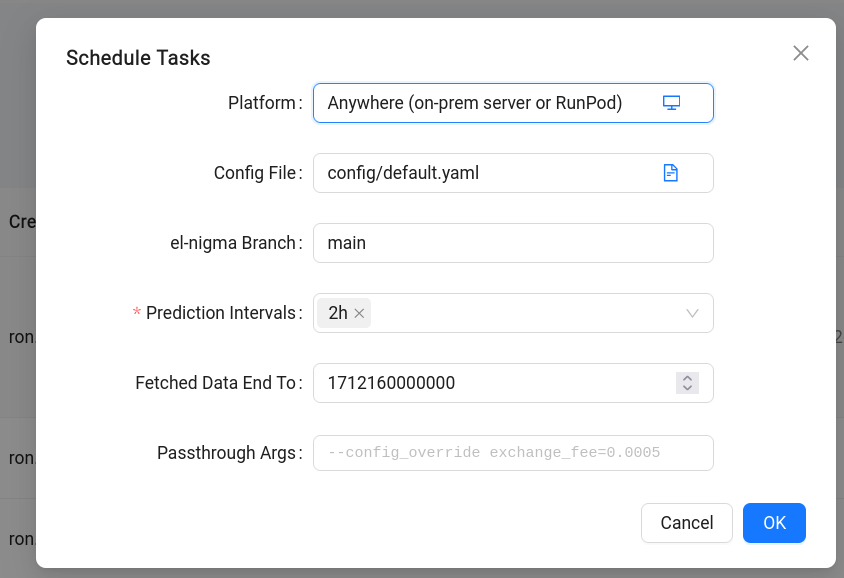
Section titled “More Configuration Options”We saw that when creating a submission we must specify a feature set implementation to use, and when scheduling it we can make decisions about the platform. In addition, when scheduling we have an opportunity to configure other parameters of the training run:
- Config File: relative path to the el-nigma configuration file to use
- el-nigma Branch: git branch of el-nigma to check out
- Prediction Intervals: a list of prediction interval values. Touchstone will generate a separate training task for each value of this field.
- Fetched Data End To: corresponds to the similarly named command line argument to el-nigma.
- Passthrough Args: Allows passing additional arguments to el-nigma. A useful argument here, shown in the hint text in the image above, is
—config_overridewhich lets us modify attributes defined in the configuration file.
Results and Logging
Section titled “Results and Logging”- Trained models: as with other el-nigma runs, keras (*.h5) models are saved to the models bucket in AWS S3.
- Model evaluations: these are also saved like any other el-nigma runs, in the DynamoDB table.
- MLflow experiment logs: saved to our MLflow server, under experiment name touchstone_service.
- console logs: the standard output and error stream from the el-nigma invocation is saved to S3 bucket eonlabs-touchstone-logs. This is particularly useful if there was an error in a run, because in an automated environment it is generally not possible to log in after the fact to investigate.
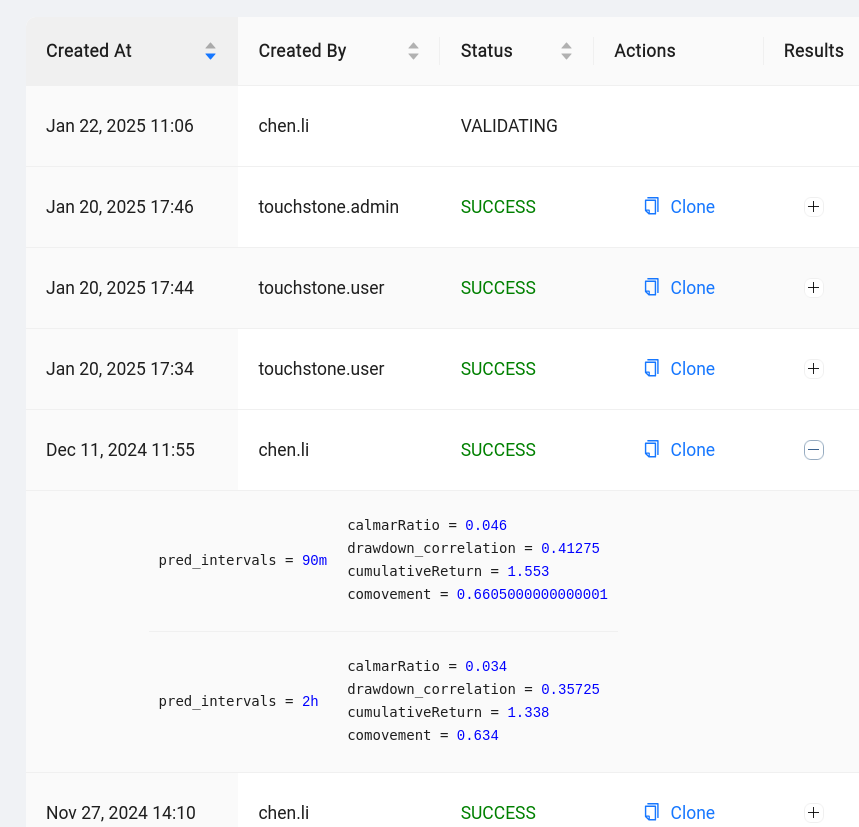
- Admin UI: submissions that were successfully completed will have an expandable Results box containing some basic metrics for each task.
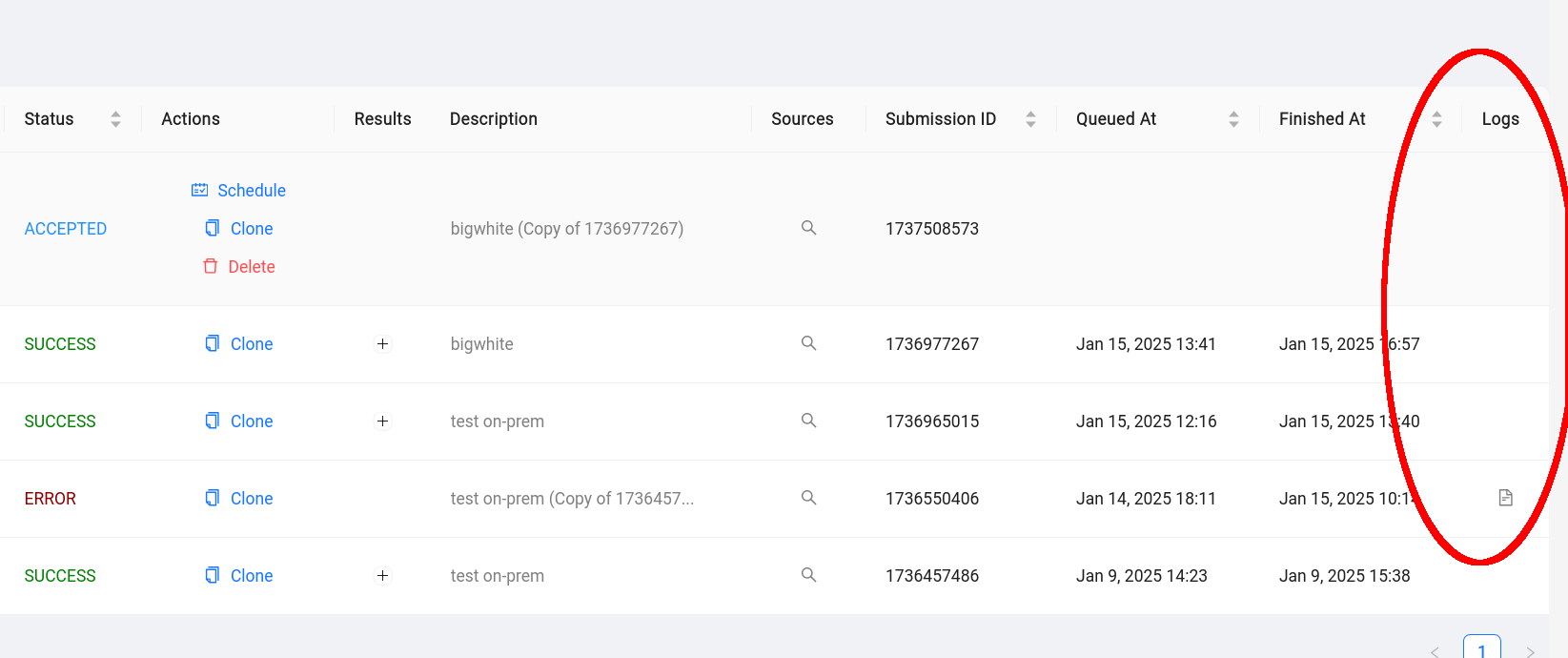
Also in the admin UI, submissions that encountered errors should have a link to a snippet of the console log embdedded right in the UI, under the logs column.
System architecture
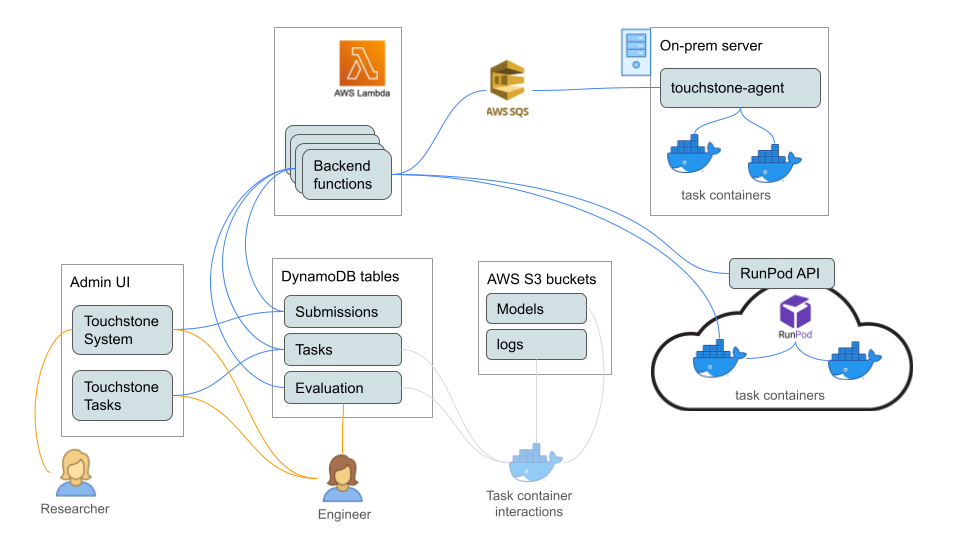
Section titled “System architecture”This section describes the components of the touchstone system.
Task containers
Section titled “Task containers”Each training task runs in its own Docker container. When running on-prem, a container is spun up on an available server, and removed when the task is done. On RunPod, a container (pod, in their terminology) is provisioned per task, and terminated when the task is done.
The containers use an el-nigma Docker image from Docker Hub, and the system installs el-nigma and dependencies on them before starting training.
Touchstone backend
Section titled “Touchstone backend”The backend is a collection of functions deployed to AWS lambda, using the Serverless Framework. The functions are:
- launch-pod: deploy a new container on RunPod
- prepare-container: install our requirements on a newly deployed container, including el-nigma and dependencies, AWS credentials, etc. In an on-prem deployment, this function also creates the container.
- train: kick off a training task or a validation task on a prepared container
- lifecycle-handler: this is the main function that drives the system. It is configured to run every 2 minutes. It checks whether any tasks had finished their current phase and need to transition to a new one. It is also what invokes all the other functions above. The lifecycle handler determines when to launch containers for queued tasks, terminate containers for tasks that have ended (or that appear to be stuck), kick off training runs on prepared containers, etc.
Admin UI
Section titled “Admin UI”The **Touchstone System **page is used to submit new requests and observe the results of processed requests. This page is accessible to any user who is a member of the Congito group touchstone_user or touchstone_admin. Users can only see submissions that they themselves created, and cannot take any actions except deleting (i.e. retracting a submission). Admins can see everyone’s submissions, and can also schedule a submission for training, as well as cancel a runnning submission.
The **Touchstone Tasks **page is used to monitor the progress and inspect the configuration of queued and running tasks. This page is only accesible to members of touchstone_admin.
On the Admin page, the System tab contains some parameters used by touchstone. Specifically:
runpod_max_running_tasksis an upper bound on simultaneously deployed RunPod pods.touchstone-serversdefinitions tell the system which on-prem GPU servers are available to it, and what resources they provide.
Touchstone Agent
Section titled “Touchstone Agent”To allow remote control of on-prem GPU servers without opening them up to inbound connections from the internet, we developed a service called touchstone-agent, which resides on these machines and provides control via shell commands and file transfers. It works somewhat similarly to TeamViewer in that communication between the controller and controlled machine is mediated via a cloud-based service that they both connect to. In this case, that service is a set of AWS SQS queues. See the documentation of touchstone-agent for more details.
Service Monitoring
Section titled “Service Monitoring”The two types of processes that comprise the system are: el-nigma logic running in a container, and backend functions running on AWS Lambda.
Unexpected errors in el-nigma execution should cause the task status to change to ERROR. The system has a built-in retry loop of up to 3 attempts, to increase resiliency to spurious errors. If all attempts fail, the submission will be marked with status ERROR. The are currently no alerts or notifications when this happens, beyond the ERROR status which is visible in the UI.
Errors in backend lambda execution raise a CloudWatch Alarm, which in turn generates a notification in the on-call Lark channel. The alarms are configurable via the service’s serverless.yml file. (Note: AWS SSM Incident Manager is not used here).
Cost Management
Section titled “Cost Management”On-prem GPU servers
Section titled “On-prem GPU servers”From the touchstone service perspective we consider these servers to be “free”, because they would likely be needed with or without touchstone. The service can help leverage these investments better, by scheduling queues of jobs automatically, and by helping run multiple jobs simultaneously (for machines with more than one GPU).
AWS Lambda
Section titled “AWS Lambda”Barring some extreme corner case bugs, the cost for running the lambda backend is negligible. Those corner cases are addressed by CloudWatch alarms for excessive invocation counts or execution duration.
RunPod
Section titled “RunPod”This is by far the highest component of the cost of the system, assuming we make any significant use of RunPod. Rental costs for pods vary by spec, but our default instance costs $0.69/hour (as of February 2025, with NVIDIA RTX 4090 GPU).
As long as the deployed pods are actually running scheduled training tasks, and get terminated promptly when the task is complete, we believe this to be a worthy investment. A potential concern is the existence “rogue pods”, which are not doing useful work and not terminated - these would continue to incur rental cost indefinitely until they are shut down.
We mitigate the risk from rogue pods in a number of ways:
- The backend automatically detects and terminates unexpected pods whose name begins with
touchstone-. All touchstone-deployed pods use this prefix. Engineers can still deploy pods for manual work, as long as they use a different prefix. - The backend implements a throttle on the number of pods that can be running simultaneously (see the description of
runpod_max_running_tasksabove). In addition to helping mitigate the impact of errors in the system, this helps limit potential damage from adversarial user behaviour. - The pods are provisioned via two company accounts on RunPod (Eon Labs Team, and Eon Labs Team Dev Account). A “low balance” warning is sent via email when the account’s balance drops below $50. By limiting the amount of funds in the account, we place an upper bound on losses in case something goes haywire.
Developer resources and recipes
Section titled “Developer resources and recipes”Production and development deployments
Section titled “Production and development deployments”The service has a production and a development instance. The production instance is backed by resources in the production AWS account (eonlabs), and managed via the production UI at admin.eonlabs.com. This is the instance that our researchers and engineers should use to train models.
The development instance is only used for working on the touchstone service itself. It is backed by resources in the dev AWS account (eonlabs-dev), and managed via the dev UI at admin.dev.eonlabs.com. In the development instance, the lifecycle handler is paused by default, and should be kept that way. See below for details on what this means.
Logging in to a running container
Section titled “Logging in to a running container”To determine whether a container is backed by an on-prem server or RunPod, check the column labeled Deployment in the tasks page of the admin UI.
For containers backed by on-prem servers:
Connect to the server using the SplashTop or TeamViewer client, and execute a shell in the container:
docker exec -ti <container-name> bash
For containers backed by RunPod:
In the RunPod web console, go to Pods, expand the entry for the pod in question, and click Connect. You can use either the Web Terminal option, or SSH (which is how the backend connects to these containers). To connect via SSH, use the command line shown under “SSH over exposed TCP”. You will need the SSH private key available in AWS Secrets Manager, secret name SERVICE_ACCOUNT/RUNPOD, key sshPrivateKey.
Pausing the service
Section titled “Pausing the service”To pause deployment of new pods to RunPod:
Use the UI Admin page’s System tab to set runpod_max_running_tasks to zero. Set a nonzero value to unpause.
To pause deployment of new containers to an on-prem server:
Use the above page to set num_slots for that server to zero. Make a note the original value - it must match (or at least not exceed) the number of GPUs installed on that machine.
To pause the lifecycle handler:
This will largely freeze the system in place: no containers would be launched, terminated, given tasks to run, etc.
WARNING #1: this should only be done in the production environment if there is no other way. If you pause production, it is your responsibility to terminate any RunPod deployments manually to avoid excessive rental charges.
WARNING #2: because the dev environment is always paused by default, it is always your responsibility to ensure any RunPod deployments there are terminated when they are no longer needed.
To pause the lifecyle handler, Open the lambda functions area of the AWS console, find and open the touchstone lifecycle-handler function, click EventBridge, under Configuration | Triggers click the link to the trigger, then click Disable. To unpause, click Enable. These operations can also be performed using the AWS CLI. (aws events disable-rule —name <rule-name>).
Adding and removing on-prem servers
Section titled “Adding and removing on-prem servers”Instructions for preparing a server to work with the touchstone service are in the touchstone-agent README. At any given time, a server should only be marked as online within the prod environment, or the dev environment, or neither. Check the System tab to see which servers are online in which environment: a server is online if its num_slots is nonzero.
Running the backend locally
Section titled “Running the backend locally”When developing or debugging the backend, it is extremely useful to be able to run its code locally. The fact that the dev environment is paused also helps: almost nothing will change in the system unless the change is triggered manually.
The lambda handlers are regular python functions. In addition to function arguments, the code requires some environment variable definitions. Below is a recipe for executing a few functions (two lambda handlers, one not) from a command shell.
The lifecycle handler takes no arguments - it is designed to look up which submissions and tasks are active, and follow up as needed. In a development scenario it’s more useful to have the handler process one task an ignore the rest, and this is indeed what it does: if it detects that it was invoked manually, it reads a container name defined in env var _DEBUG_TASK_CONTAINER and processes only that task, ignoring any others.
cd services/touchstone/backend   # go to the backend directory
# set up venvpython3 -m venv venvsource venv/bin/activatepip3 install -r requirements.txt
# set up required env varsexport AWS_PROFILE=el-devexport AWS_ENV_NAME=devexport MODEL_POST_TRAIN_EVALUATION_TABLE_NAME=ModelPostTrainEvaluationexport TOUCHSTONE_LOGS_BUCKET=eonlabs-touchstone-logs-dev# get the private key from AWS Secrets Manager, SERVICE_ACCOUNT/RUNPOD/sshPrivateKeyexport RUNPOD_SSH_PRIVATE_KEY='-----BEGIN OPENSSH PRIVATE KEY-----\n...'# get the API key from AWS Secrets Manager, SERVICE_ACCOUNT/RUNPOD/apiKeyexport RUNPOD_API_KEY=rpa_...
# execute a shell command on an on-prem serverpython3 -c 'import agent_helpers as m; m.ActiveQueueIndex.set(None); print(m.run_via_agent("rio1080", "ls"))'# run the lifecycle handler onceexport _DEBUG_TASK_CONTAINER=touchstone-my-submission-id-my-task-idpython3 -c 'import runpod_handler as m; print(m.lifecycle_handler(None, None))'
# run the prepare-container handlerpython3 -c 'import runpod_handler as m; \print(m.prepare_container_handler(\ {"submission_id": "my-sumbission-id", "task_id": "my-task-id"}, None))'