WagePoint for Termination (Vacation Pay Adjustment Manually) + ROE EDIT
Source: Notion | Last edited: 2025-04-22 | ID: 1ba2d2dc-3ef...
First, login to WagePoint.
Follow:
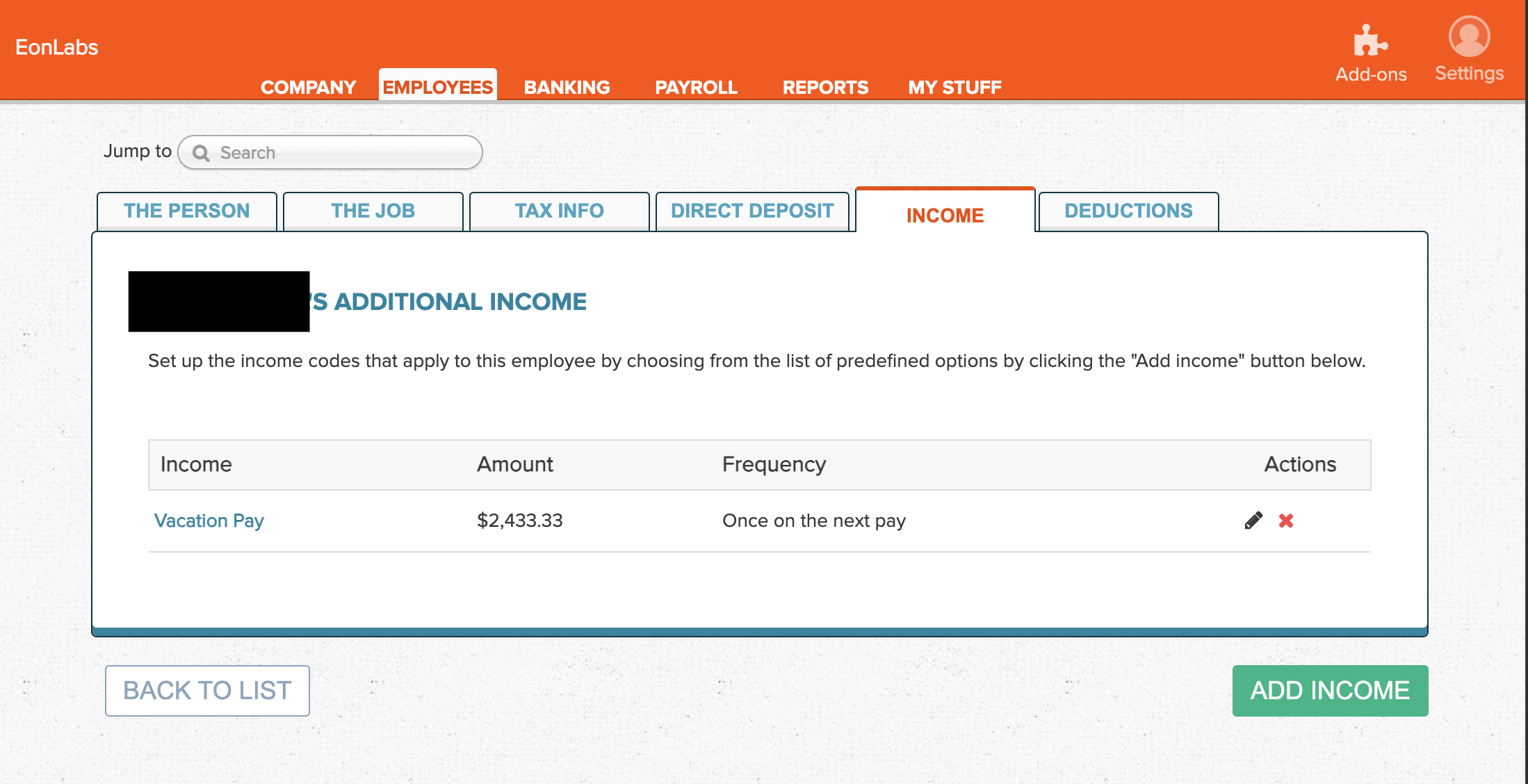
EMPLOYEES > click on the Name of the Employee > INCOME tab > ADD INCOME button
In the INCOME pane, next to the:
Income Type, chooseVACATION PAYAmount, enter the number agreed by the employee in termination email.Frequency,Once on the next pay- Charge Dept, nothing to change
- Hours Associated, leave it as zero (0) is fine.
Press
SAVE INCOMEbutton.
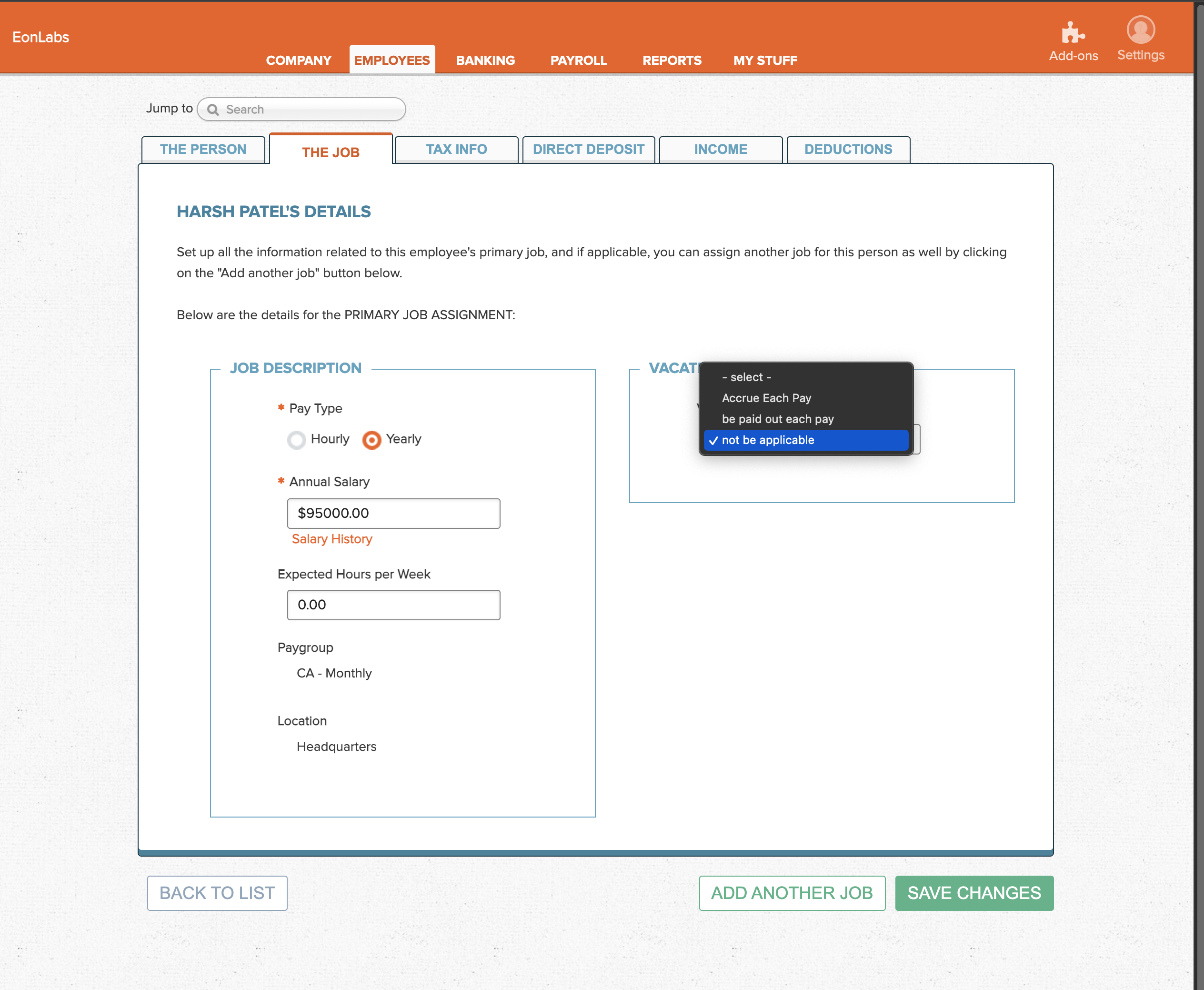
We can leave EMPLOYEES > THE JOB > VACATION settings as “not to be applicable”.
Reference
Section titled “Reference”Email reply from WagePoint Support Team
Section titled “Email reply from WagePoint Support Team”When you are terminating an employee, ensure that you have paid out all remaining wages and any vacation balances (if applicable) prior to terminating the employee record. This can be done on a regular pay or an off-cycle run.
The remaining pay and vacation (if applicable) should be added at the employee level. We cannot assist with these calculations, you will have to manually calculate the vacation owed.
Paying out Vacation dollars with no time taken (a payout) - both Salaried and Hourly Employees:
When paying out vacation balances and no time off is taken, use the employee profile. This allows the payout without attaching any insurable hours as with cases such as termination or paying out vacation anniversary or year-end balances not carried. (Note: if hours populate, please reach out so that we can remove them.)
- manually calculate the accrued vacation on the current pay owing
- Go to Employees > click on the employee you want to pay > Income tab > Add Income > select the drop-down menu and select Vacation > enter in the total vacation to pay (accrued plus what will be earned) > Frequency of “once on next pay” > no hours > Save. **Note: **If for any reason you are left with a small residual rounding balance, contact us at support@wagepoint.com and we can zero it out.
Once the payroll has been finalized and you see the final reports for that payroll, you can go back into the app and start the termination process.
Terminate an employee & create an ROE
Once you press CREATE ROE you will be taken to a draft ROE to review the information, you can use the EDIT ROE feature if needed or submit it to Service Canada right away.
Please also ensure that the ROE SAT Addendum is signed allowing us to process the ROE on your behalf. Please see the link below on how to complete the ROE SAT Addendum:
(CA) Complete and e-sign the ROE SAT registration addendum
If you need anything further, please let me know.
To EDIT ROE Properly
Section titled “To EDIT ROE Properly”2025-04-07 Called Employer Contact Center at 1-800-367-5693 and got this as confirmation:
If wages are inadvertently issued to a terminated employee in advance of the regular payroll cycle (as the company typically pays in arrears), manual adjustments must be made to the Record of Employment (ROE). Specifically, Box 15C for the final pay period should reflect only the correct amount of insurable earnings—namely, any accrued vacation pay plus regular wages for the last month of employment. Then, within Wagepoint, click EDIT and reset the final entry in the Box 15C earnings history (e.g., the 13th cell if the employee had 12 months of service) to zero, to ensure there is no duplication or overstatement of insurable earnings.
Key Takeaways for Accurate ROE Filing
Section titled “Key Takeaways for Accurate ROE Filing”2025-04-10 Will of Service Canada, whose direct Line is 639-221-5004, called @Terry Li for correction for Alina’s ROE. And the key takeways after the correction made is as follows:
✅ 1. Align Employment Dates with Pay Periods (Block 15c)
Section titled “✅ 1. Align Employment Dates with Pay Periods (Block 15c)”-
Field 10 (First Day Worked): ➤ Should reflect the first paid and worked period — not the hiring date or contract signing date.
➤ If the first pay period shows $0 earnings (like PP 13 here), don’t use a date from that period.
-
Field 11 (Last Day for Which Paid): ➤ Should be the last day worked or paid for, matching the final pay period that has non-zero insurable earnings.
-
Field 12 (Final Pay Period Ending Date): ➤ Must match the last pay period shown in 15c, especially if vacation pay is included.
✅ 2. Vacation Pay at Termination
Section titled “✅ 2. Vacation Pay at Termination”- Include in Block 17 as a separation payment
- Also include in 15c PP 1 if it’s paid in the final pay period (e.g., termination lump sum)
- Do not spread it across earlier pay periods.
✅ 3. Zero Pay Periods (Like PP 13)
Section titled “✅ 3. Zero Pay Periods (Like PP 13)”- If a period shows $0 earnings and 0 hours, ensure the start date (Field 10) is after that period.
- Otherwise, Service Canada might question why no work was done during that time.
✅ 4. Earnings Breakdown Consistency
Section titled “✅ 4. Earnings Breakdown Consistency”- Ensure total earnings in 15b = sum of 15c pay periods, including vacation pay if applicable.
- Avoid mismatches between what’s in 15b and what’s itemized.
✅ 5. CRA-Ready Documentation
Section titled “✅ 5. CRA-Ready Documentation”- Keep internal records that explain:
- Start date vs. first paid date
- Vacation pay timing
- Why a period may have $0 earnings
- Clarification for contract types (e.g., seasonal, part-time, short-term)
🧠 Pro Tip
Section titled “🧠 Pro Tip”When unsure, build the ROE around the 15c pay periods first, then derive the dates (10, 11, 12) based on the actual earnings timeline — not the employment contract dates.