Configure Managed Sub Account
Source: Notion | Last edited: 2025-01-02 | ID: bd545bd0-ec1...
Here are the detailed steps to create API keys for Managed Sub Accounts.
Step 1: Enable Future Permission
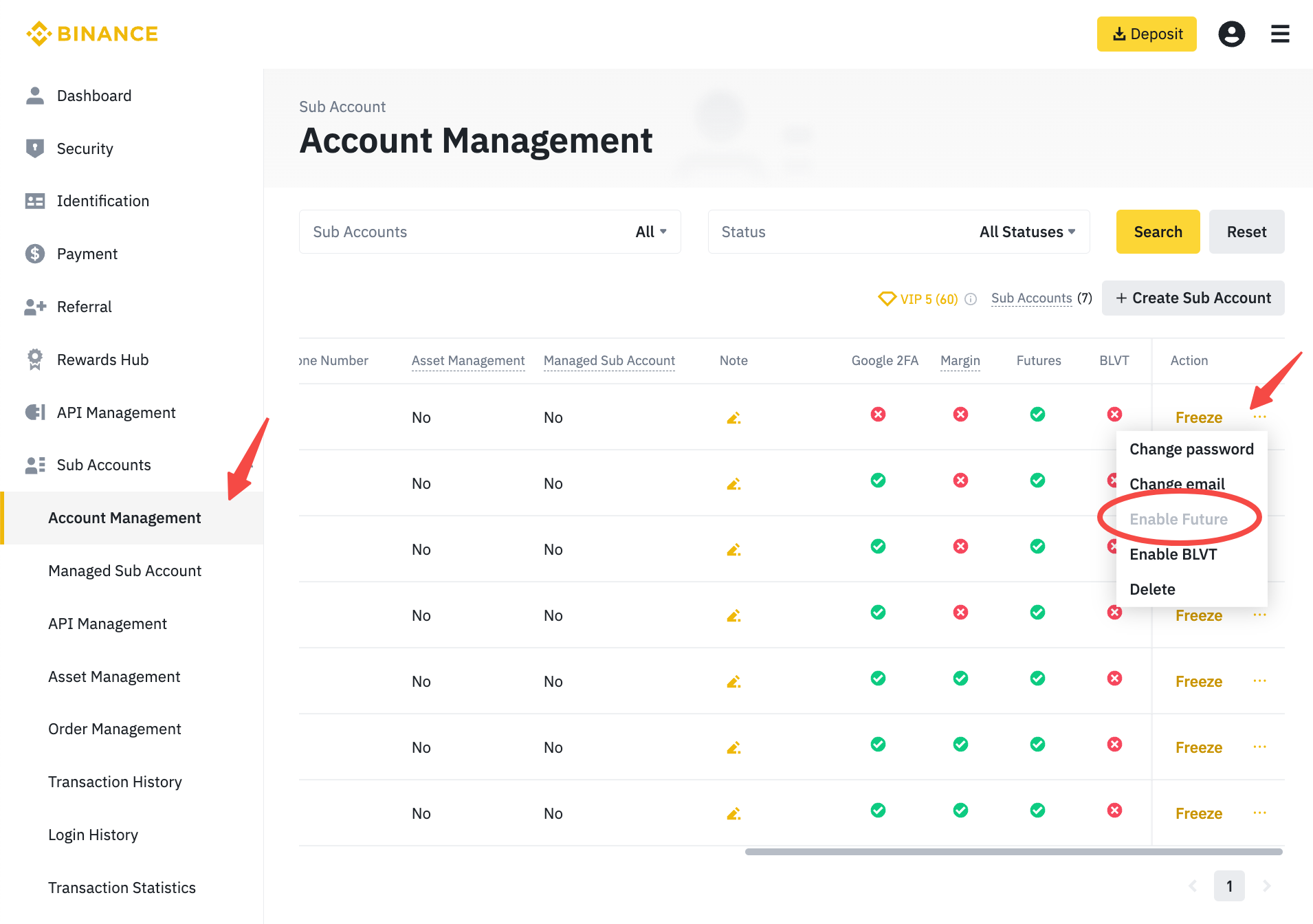
Section titled “Step 1: Enable Future Permission”In the master Binance account, enable the futures trading ability by the following steps:
Sub Accounts > Account Management → identity the corresponding MSA based on MSA List (QT<>Eon) → click ‘…’ → Enable Future
Step 2: Create APIs: Read & Trade
Section titled “Step 2: Create APIs: Read & Trade”You can create the API key through the following steps:
Sub Accounts > API Management → Create API → System generated
For each managed sub-account for EonLabs, two APIs will need to be created:
- read only
- trade
Please follow the screenshots below to config the permissions for the two APIs,
- read only API
- Set permissions (Enable Reading). As of May 2023, this is the default API permission, and no change needs to be made.
- Click Save
- trade API
- Set permissions (Enable Spot & Margin Trading, Enable Futures, Permits Universal Transfer)
- Add trusted IP:
OFFICE WeWork: 38.142.1.26
HOME James:  104.243.104.195HOME Chen (NEW): 154.20.67.223
PROD Trading Server: 18.176.144.57PROD Lambda: 3.113.209.163- Click Confirm
- Click Save
Please securely share the API keys and Secret Keys of the newly created managed-sub-accounts with EonLabs.